Save files in the PC version of Stellar Blade let you return to checkpoints for another playthrough, import someone else's progress with many outfits, and keep backups in case you reinstall or modify the game.
Save files also matter because you can transfer progress from the demo. After defeating the first boss, you can continue from that point instead of starting over. This guide explains where to find your saves and what to do if your demo progress does not transfer.
Where to Find Stellar Blade Save Files
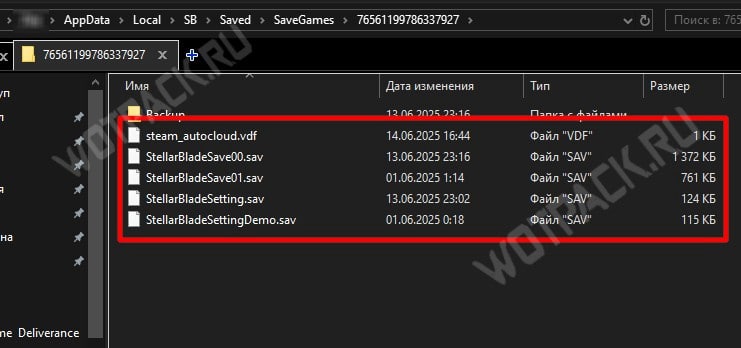
The save file path for the Steam and Epic Games Store versions of Stellar Blade on PC is:
C:\Users\[username]\AppData\Local\SB\Saved\SaveGames\[user ID]\
To open the directory quickly, enter this command in the Run dialog (press Win + R):
%LOCALAPPDATA%\SB\Saved\SaveGames\[user ID]\
Some saves, including demo saves, are stored in the Documents directory:
C:\Users\[username]\Documents\StellarBlade\[user ID]\
You can open the folder with this command:
%USERPROFILE%\Documents\StellarBlade\[user ID]\
Look for files with the “.sav” extension in these directories. They are numbered by slot, as they are in the game. You can also use their modification dates to identify them.
How to Transfer Progress from the Demo
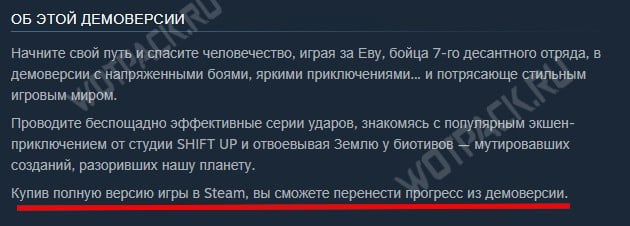
Completing 100% of the demo lets you transfer your progress from the Stellar Blade demo later and continue after the boss fight without replaying the first area.
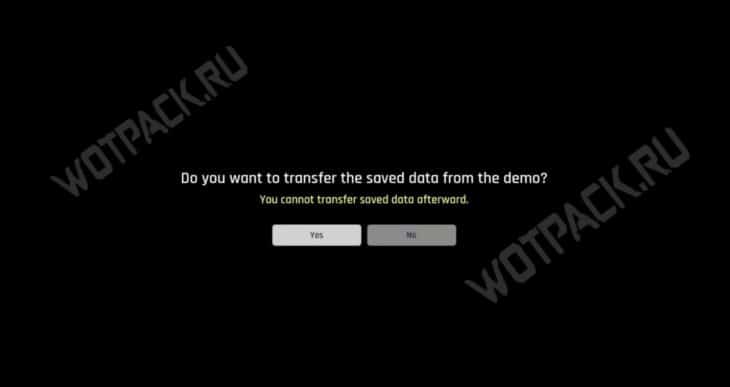
When you first launch the full game, a prompt should appear asking whether you want to transfer your saved progress from the demo. Most players reported that they did not see this pop-up. To avoid problems:
- Do not delete the demo before transferring your saves.
- Make sure you have completed the demo: banners offering you the option to buy the full game should appear.
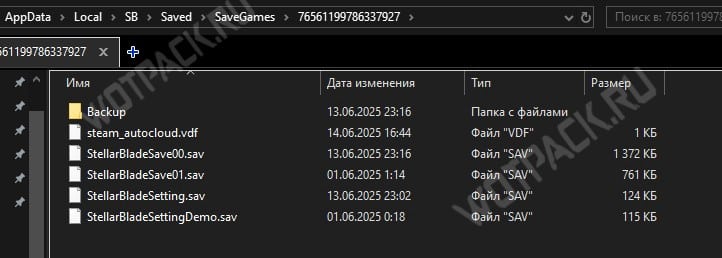
If the prompt still does not appear, try the following steps after copying your saves to another directory as a backup:
- Launch the full version of Stellar Blade.
- Go to “C:\Users\[username]\AppData\Local\SB\Saved\SaveGames\[user ID]” and delete all the data in the folder while the game is running.
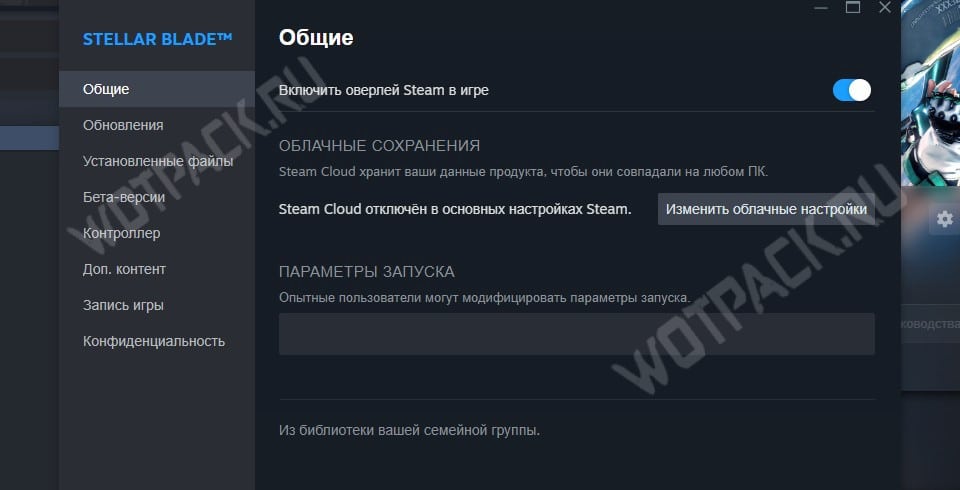
- Close Stellar Blade. This will trigger synchronization of the save files with their copies in Steam Cloud.
- Restart the game.
If you play using offline activation, this method may not work because Steam Cloud is disabled and the account IDs differ.
You can also try another method that works in some cases:
- Press Win + R, enter “%localappdata%”, and press Enter.
- Go to “C:\Users\[username]\AppData\Local\SB_Demo\Saved\SaveGames\[user ID]”.
- Copy all the “.sav” files or the entire “SaveGames” directory.
- Move them to the full game's main save folder: “%localappdata%\SB\Saved\SaveGames”.
- Launch the game.
If that does not help, the problem may be related to the game settings:
- Disable cloud saves so the save files can be overwritten.
- Make sure the filenames match the original format, such as “StellarBladeSave01.sav”.
- Try running the game as an administrator.
We hope this guide helped you find your Stellar Blade saves and transfer your progress from the demo. If you have any questions, ask them in the comments, and we will answer.