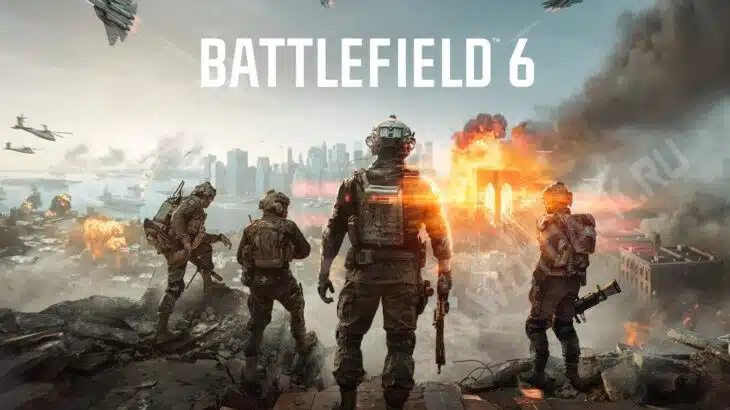
Optimal graphics settings in Battlefield 6 will help maintain stable FPS even in the most intense battles. A large number of players on the map, modern graphics and large-scale destruction can load even top-end PCs. But in dynamic online battles, graphics quality alone will not win - precision and responsiveness of controls are no less important here.
With the release of the game, the number of people wishing to test themselves in virtual battles has grown so much that Electronic Arts has increased server capacity to ensure the game without queues. All that remains is to take care of the smoothness of the picture and the convenience of control - in this guide we will analyze the settings that will help you get the most out of the main online shooter of the coming years.
System Requirements
The official system requirements for the game are published on the official project page and on Steam. Unfortunately, they cannot be called lenient - the minimum requirements for components are quite high:
| Parameter | The minimum | Recommended |
| OS | Windows 10 | Windows 11 |
| Processor | Intel Core i5-8400, AMD Ryzen 5 2600 | Intel Core i7-10700, AMD Ryzen 7 3700X |
| RAM | 16 GB | 16 GB |
| Video card | Nvidia RTX 2060, AMD Radeon RX 5600 XT 6GB | Nvidia RTX 3060Ti, AMD Radeon RX 6700-XT |
| DirectX | Version 12 | Version 12 |
| Disk space | 55 GB (SSD) | 80 GB (SSD) |
| Additional features | Availability of TPM 2.0 module, UEFI Secure Boot enabled, HVCI and VBS compatible | Availability of TPM 2.0 module, UEFI Secure Boot enabled, HVCI and VBS compatible |
Despite the high official requirements, the optimization of Battlefield 6 turned out to be excellent - the project can be launched with a stable frame rate even on relatively old video cards.
In this regard, it is recommended to independently check the stability of the game on your configuration. You can do this for free during the open beta test.
Battlefield 6 Graphics Settings for Optimal FPS
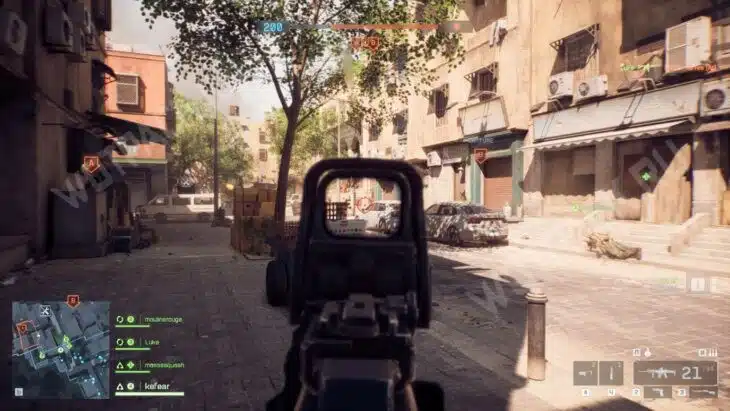
The frame rate in Battlefield 6 is one of the key factors that directly affects the outcome of the battle in dynamic online battles. To ensure comfortable gameplay, the developers have made several convenient graphics presets that are suitable for different PC configurations.
In addition, the game has a smart automatic mode that automatically selects the optimal parameters for the user's hardware, helping to maintain high and stable FPS without unnecessary fuss. But gamers who want to squeeze the most out of the picture and at the same time maintain high performance are advised to set the parameters manually.
Quick graphics settings for weak and powerful PCs
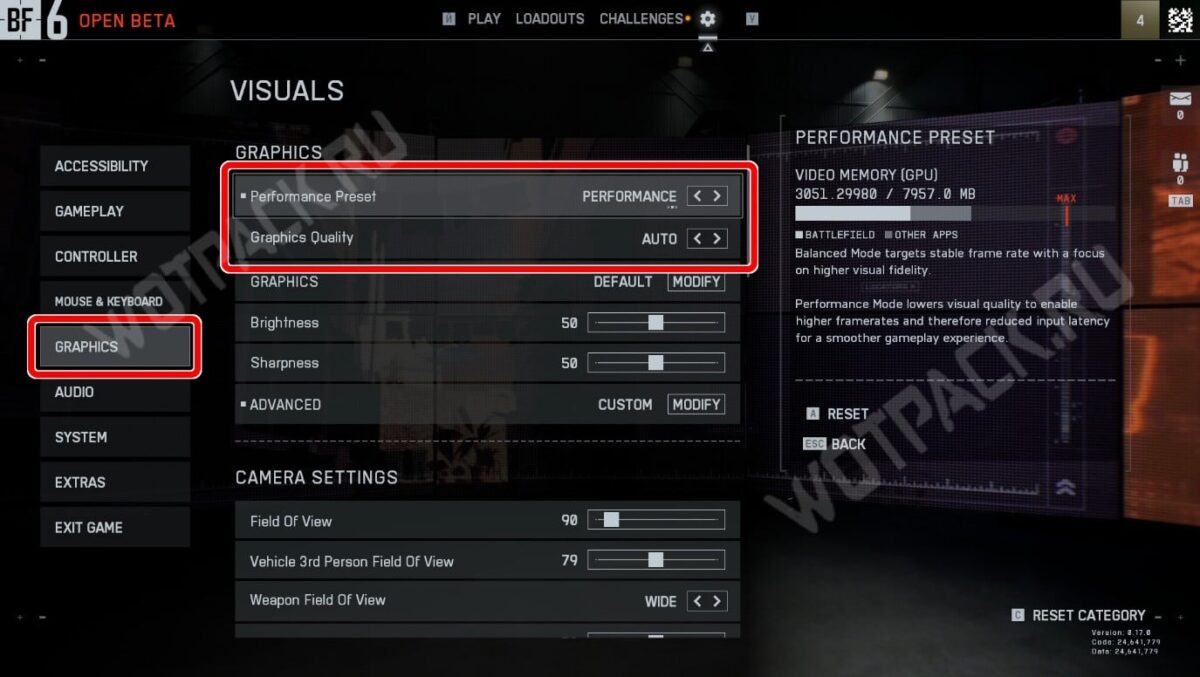
In order not to spend a lot of time on detailed settings, you can quickly optimize the application's visuals for yourself by setting presets in the Graphics tab.
On weak PCs It is recommended to set the following presets:
- Performance Preset - Set to Performance.
- Graphics Quality - select Automatically (Auto).
An automatic preset with an emphasis on performance will select the optimal parameters that can increase FPS in Battlefield 6 even on weak hardware, while providing a minimum acceptable image quality.
If after selecting a preset there is a lot of free video memory left on the scale on the right, you can experiment - for example, instead of automatic graphics quality, set Medium and check how this affects the game.
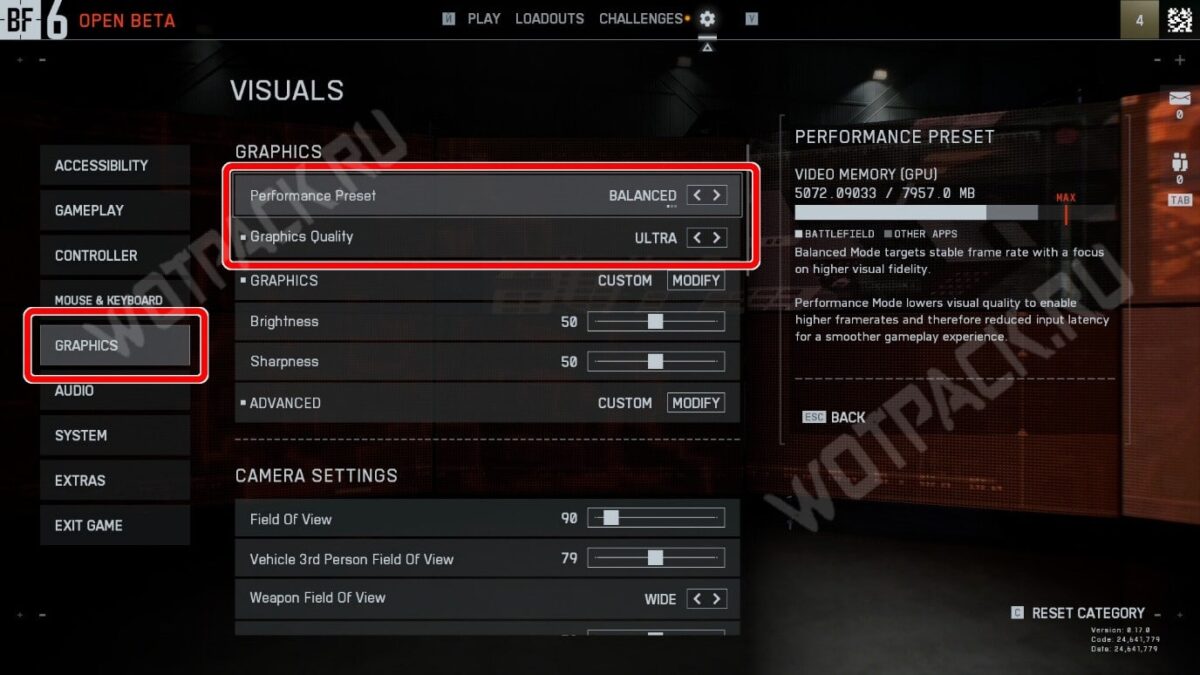
On strong PCs it's even simpler:
- Performance Preset - Set to Balanced.
- Graphics Quality - select Ultra.
But in any case, keep an eye on the remaining video memory and don't forget to test. If the PC can't cope and the scale goes into the red zone, lower the graphics preset to High or return the Performance priority.
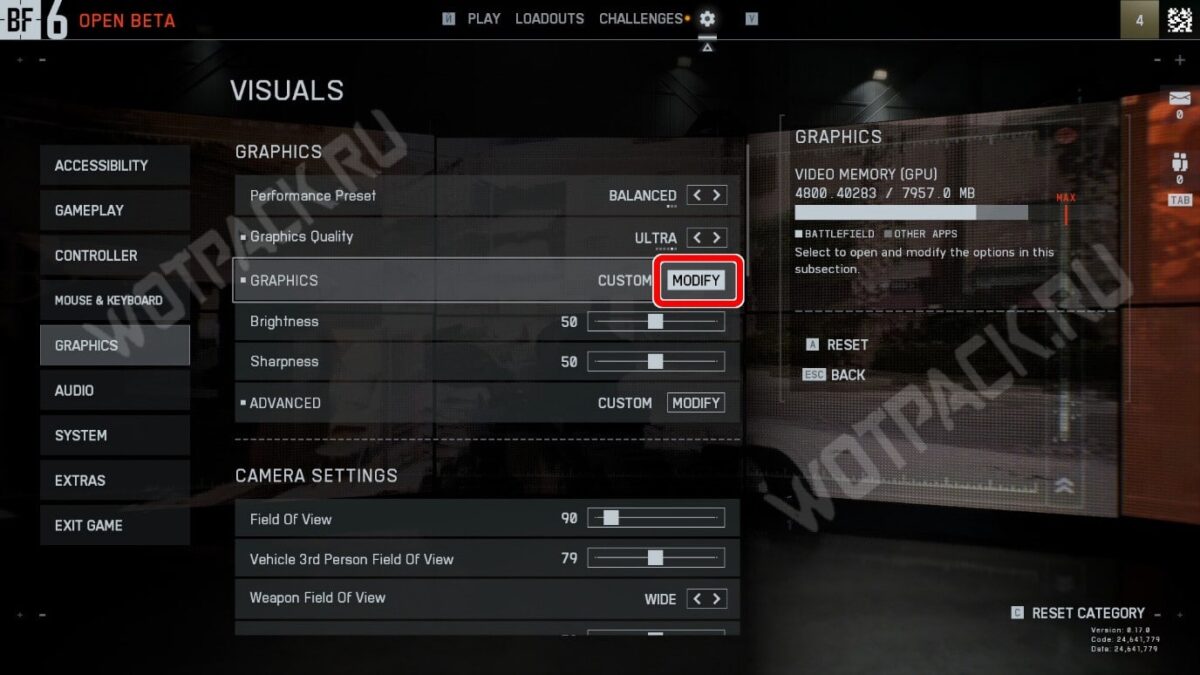
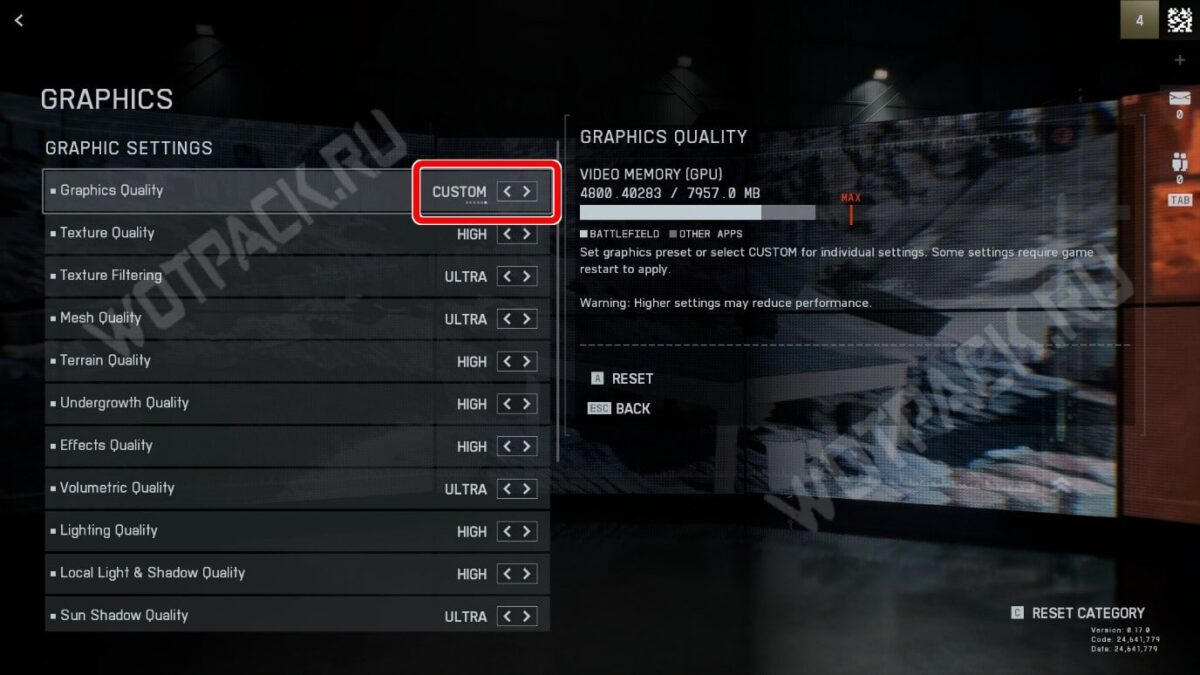
If desired, you can play with the point parameters manually and customize them for yourself. To do this, in the GRAPHICS field, click the Modify button and set the quality to Custom.
Also, for the best gaming experience, we recommend setting the following camera settings:
- Field of View - 100-110.
- Vehicle 3rd Person Field of View - 80-85.
- Weapon Field of View - Wide.
- World Motion Blur - 0.
- Weapon Motion Blur - 0.
- Camera Shake Amount: 20.
- Chromatic Aberration - Off.
- Film Grain - Off.
Advanced Settings
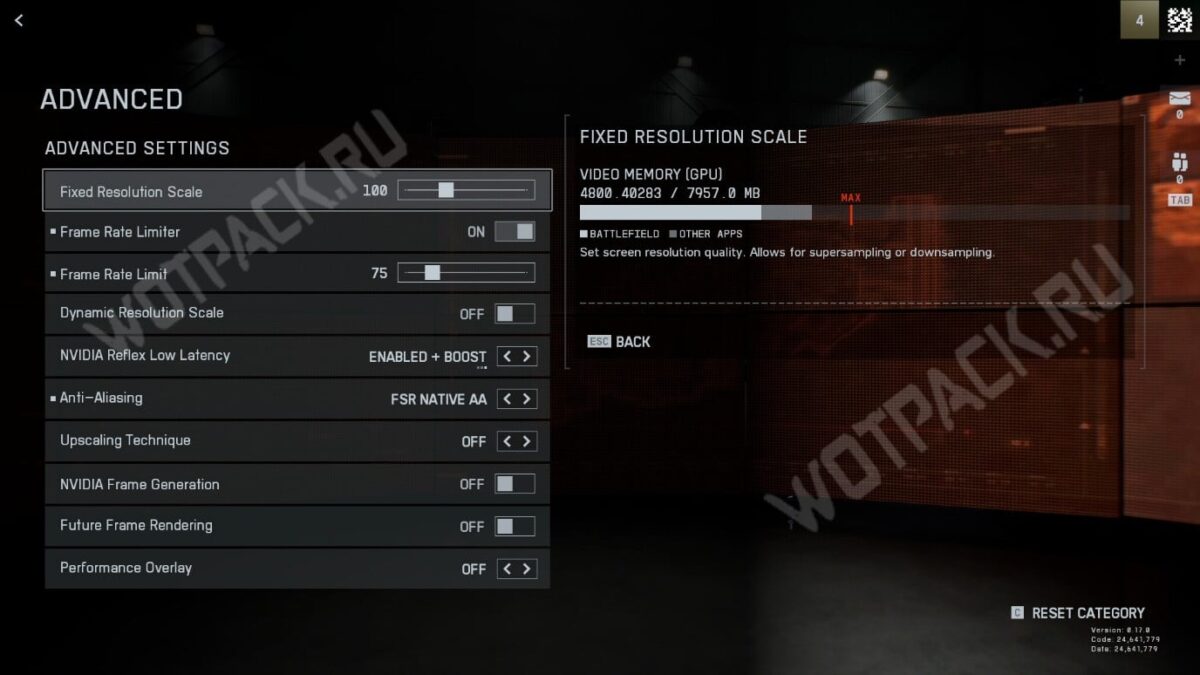
In the “Advanced” submenu, the developers have collected various graphical options that allow you to improve visualization or increase performance using modern AI-based scaling technologies.
It is worth going through the main ones and figuring out what they are responsible for and whether they should be included:
- Fixed Resolution Scale — values above 100% increase clarity but reduce performance, below 100% — increase FPS at the expense of quality deterioration. On weak hardware, it is recommended to reduce to 80–90%.
- Dynamic Resolution Scale - turn on if you experience problems in heavy scenes with a lot of objects.
- NVIDIA Reflex Low Latency — used to reduce input lag, which is especially important in dynamic online shooters. We recommend setting the value to «ENABLED» or «ENABLED+BOOST».
- Anti-Aliasing — for NVIDIA RTX video cards, set DLAA, on AMD, FSR Native AA works, and Intel cards use XESS Native AA. On weak devices, you can turn off anti-aliasing to improve performance.
- Upscaling Technique — AI-powered upscaling technologies to improve performance (DLSS, FSR, XESS).
- Frame Generation - turn on at low frame rate.
- Future Frame Generation — renders frames in advance, increasing input lag. Recommended for use only in case of serious performance issues.
Game process
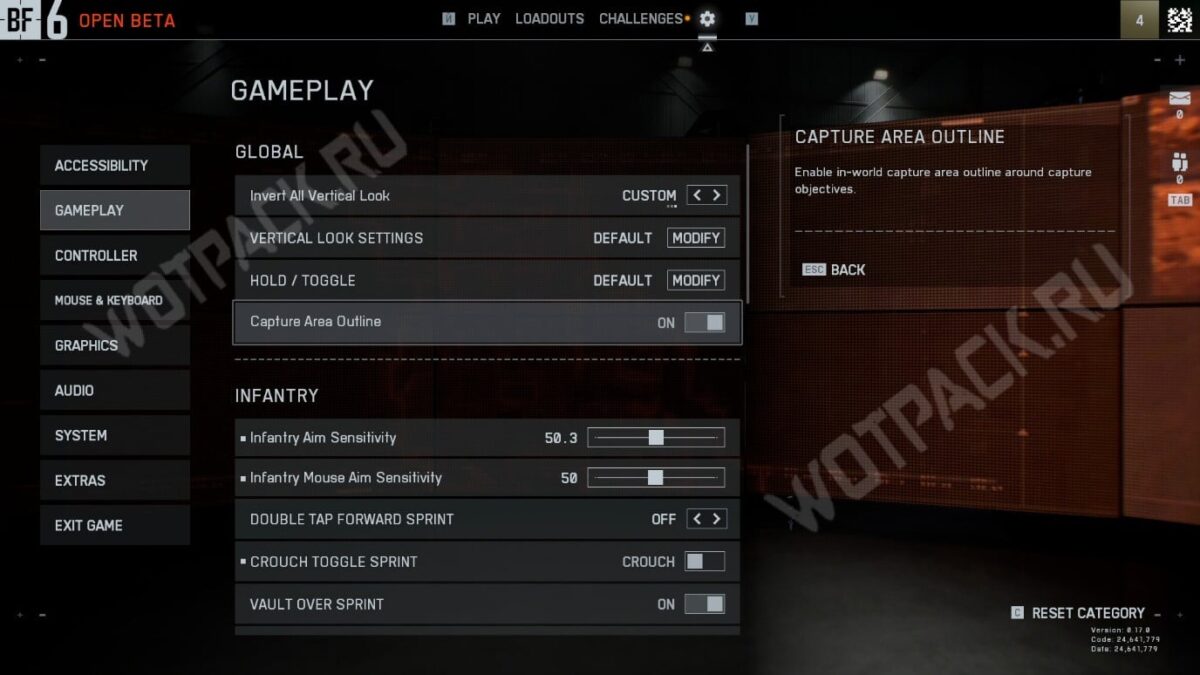
Most of the settings in the "Gameplay" category are customizable. Below we will tell you what the main ones are for and give some recommendations.
- Capture Area Outline - enables the display of contours around objects when hovering. It is recommended to keep it enabled for ease of orientation in combat.
- Vault over Sprint - When enabled, automatically vaults over low obstacles while running.
- Sprint Door Barge - Toggles automatic passage through doors while sprinting.
- Landing Roll - When falling from a non-lethal height, allows you to perform a somersault, reducing damage.
- Inventory Visibility - Changes the behavior of the item panel display on the screen.
Assistance in aiming
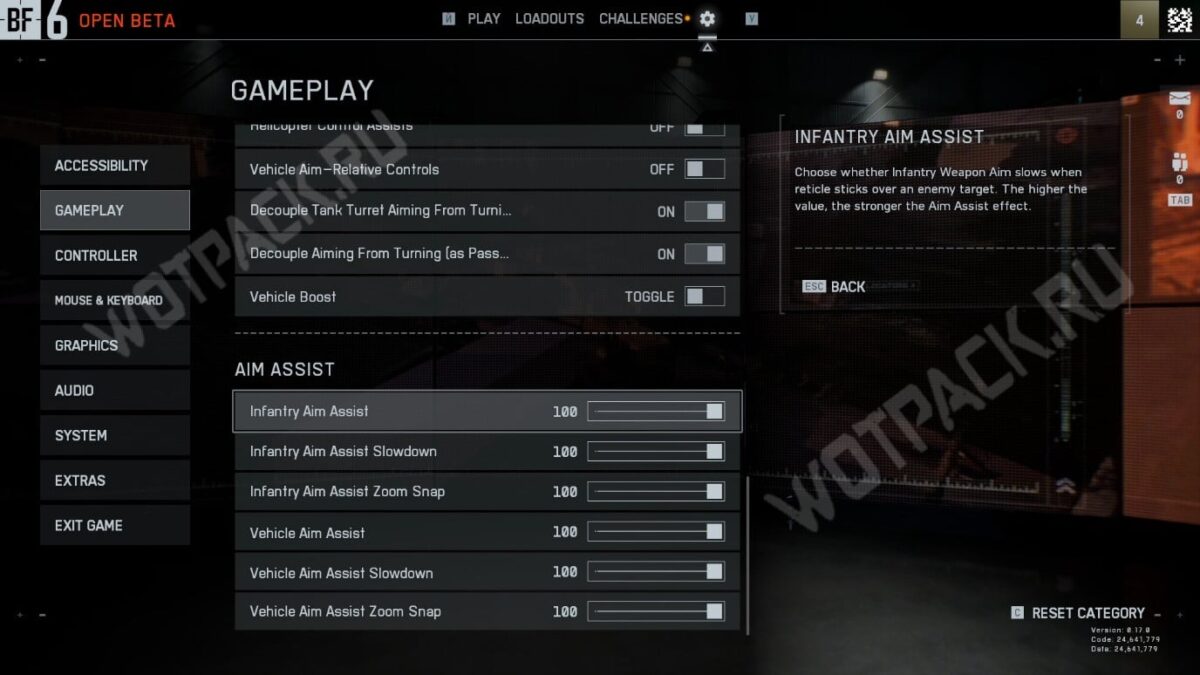
The "Aim Assist" section is relevant only for console players and those who prefer to play on a gamepad. The higher the sliders are set, the more actively the system will pull the crosshair to the opponents' hitboxes and monitor their movements. High values are recommended for beginners, and experienced players often turn off this function as unnecessary.
Mouse and Keyboard Settings
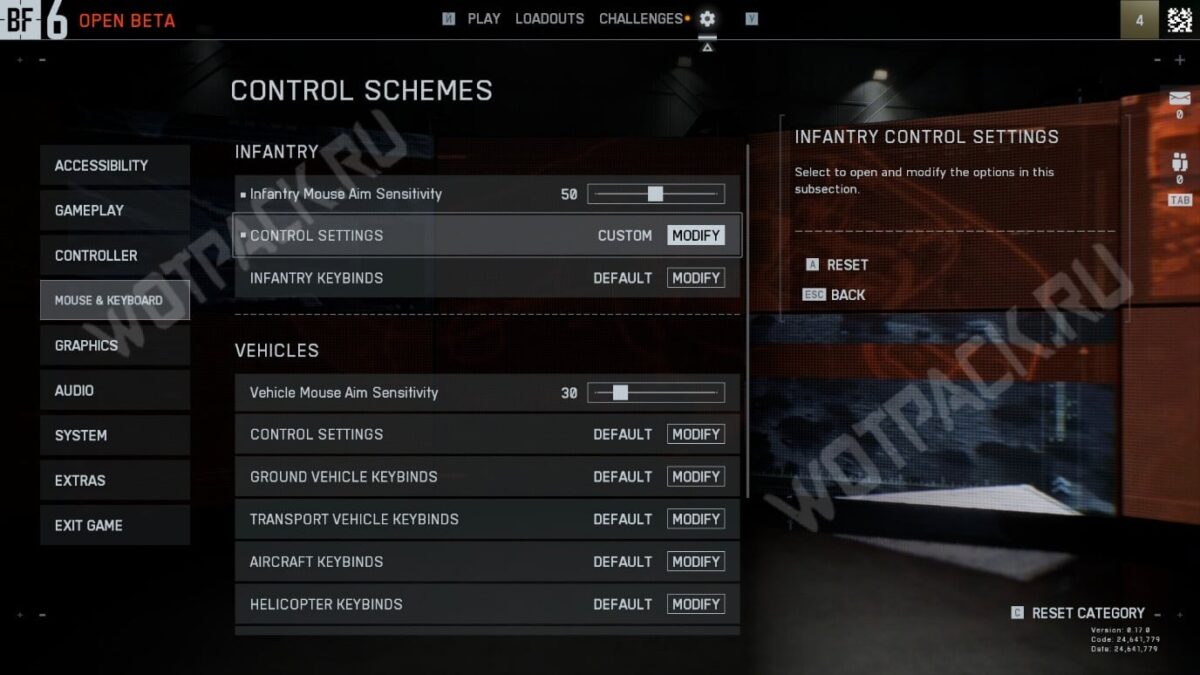
Detailed control settings in Battlefield 6 may differ for different players. By default, the key layout is made convenient for most, and there is no need to change it specifically. However, if you are used to playing shooters with other settings, go to the "Mouse & Keyboard" section and change the key bindings.
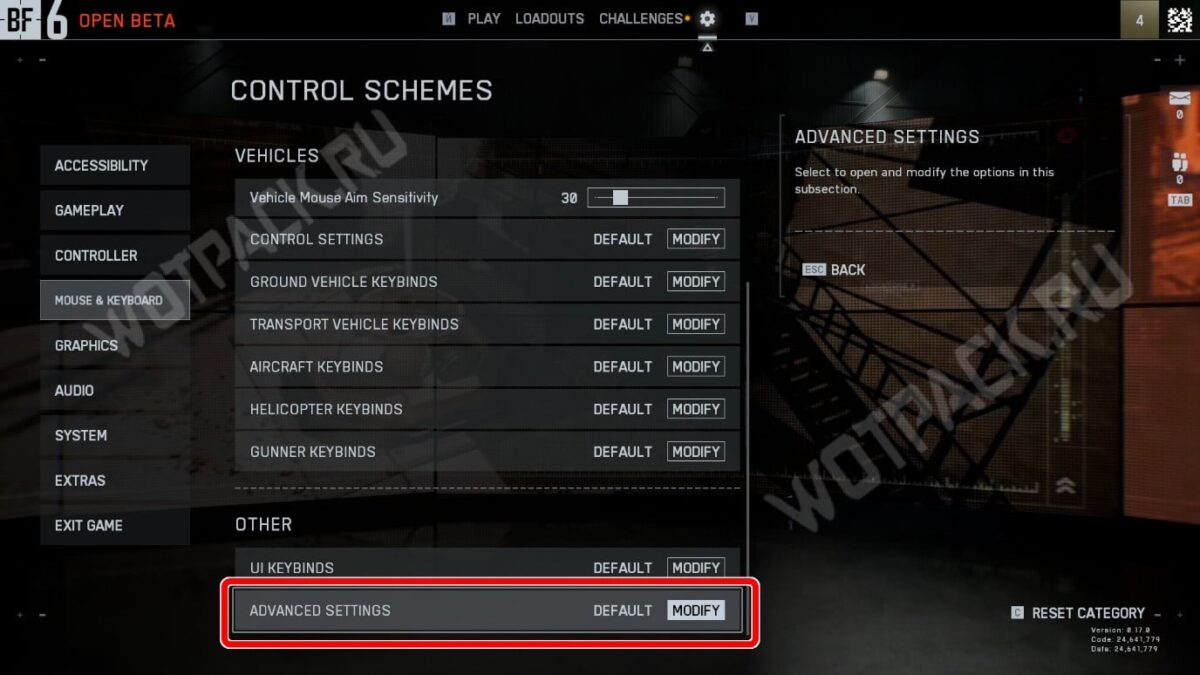
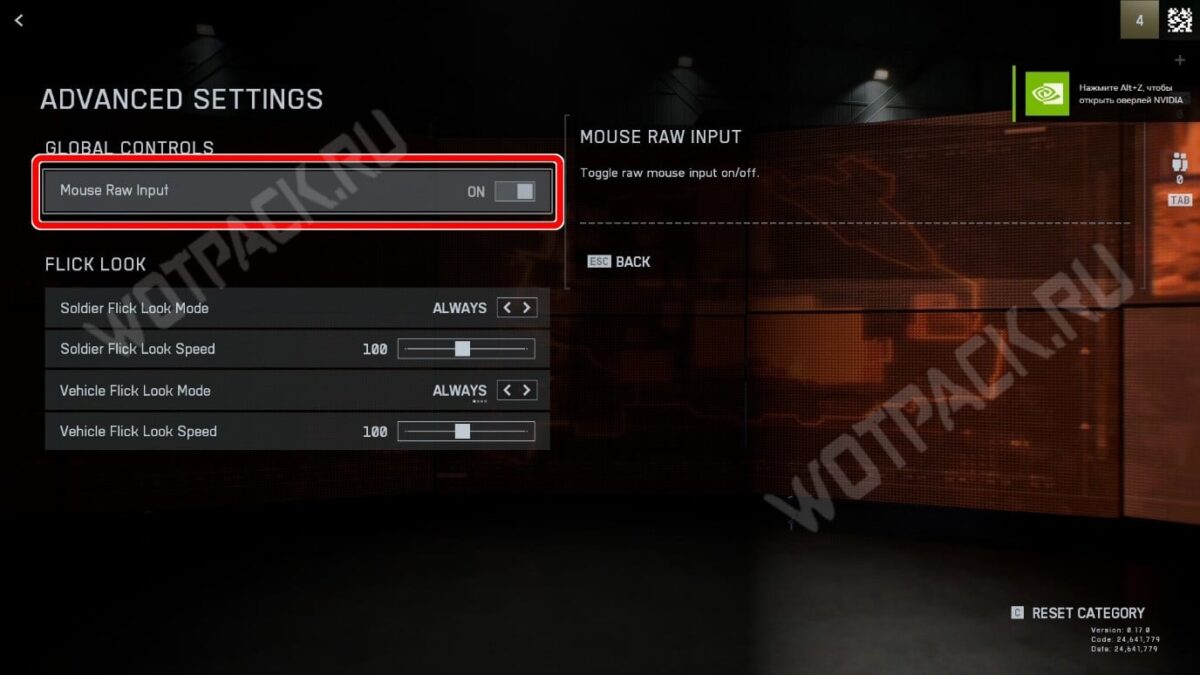
The only recommendation that is relevant for most players is to enable the option "Mouse Raw Input". Scroll to the bottom of the menu and go to Advanced Settings, where you can make sure this option is enabled. It resets any hardware acceleration of the manipulator and makes the aiming process more precise.
Despite the lack of Russian language, the developers tried to make the setup process flexible and understandable. With this guide, you have all the data to easily understand the English interface and customize the game for yourself and your hardware.